 Getting Started with Yoda
Overview
This is the Getting Started page, part of VU Tools → Yoda in the A-LIFE RDM collection.
This document covers:
Supporting materials: GEMs, Resources, FAQs
Authors: Irene Martorelli, Brett Olivier — Last modification: 2026-07-28 — Version: 0.5.1
 1. Requesting Storage Space in Yoda
To request a Yoda storage space for your project, fill in and submit the form via the VU Service Portal:
Before filling in the Requesting Storage Space form, make sure you have the following information ready as it will be requested in the form:
- Project Manager — full name of the head of the project
- Delegated person managing the data (if applicable)
- Project Budget number
- Estimated volume of data to be uploaded to Yoda
I want to access an existing group
To obtain access to an existing research group in Yoda, you do not need to request storage space. Instead, ask the group manager of the research group to give you read, write, or even group manager rights. This is described in our guide Manage Group Members.
 2. Metadata Fields for the Request Form
The request form contains a number of metadata fields required to complete in order to get accepted and for the Yoda space to be created..
2.1 Filling in the Metadata Form
To help you fill in all the fields of the form in correctly, we provide a best practices guide covering each field:
Best Practices — Requesting Yoda Space
2.2 Submit your form
Once you have completed all fields, submit the form. You will receive a confirmation email within a few working days once your project space has been created.
For any questions about the form, contact the RDM Functional Application Manager, Diógenes Cruz de Arcelino — d.cruz.de.arcelino@vu.nl, or use the RDM contact form to submit your questions.
 3. Login to Yoda
Once you receive confirmation that your Yoda project space is ready, you can log in to the Yoda Portal and start using your Yoda Research Space.
3.1 Go to the VU Yoda Portal
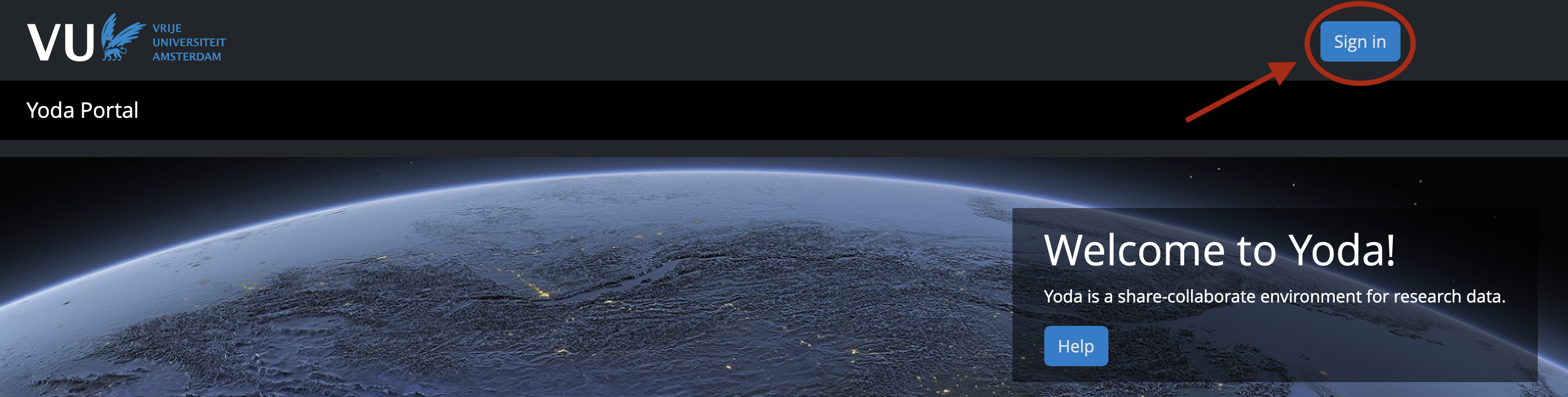
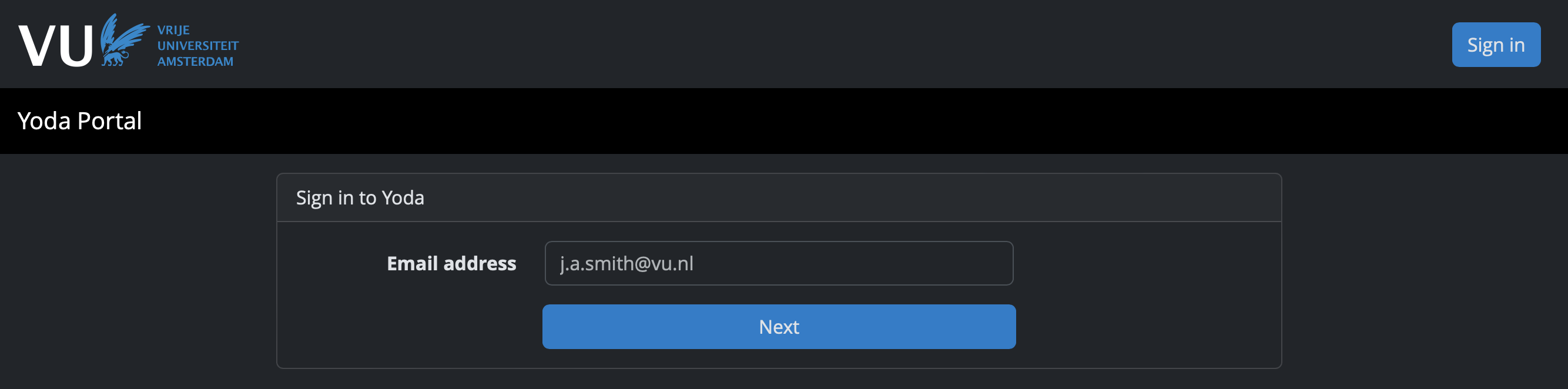
3.2 Provide your VU email address
Sign in with your VU email address.
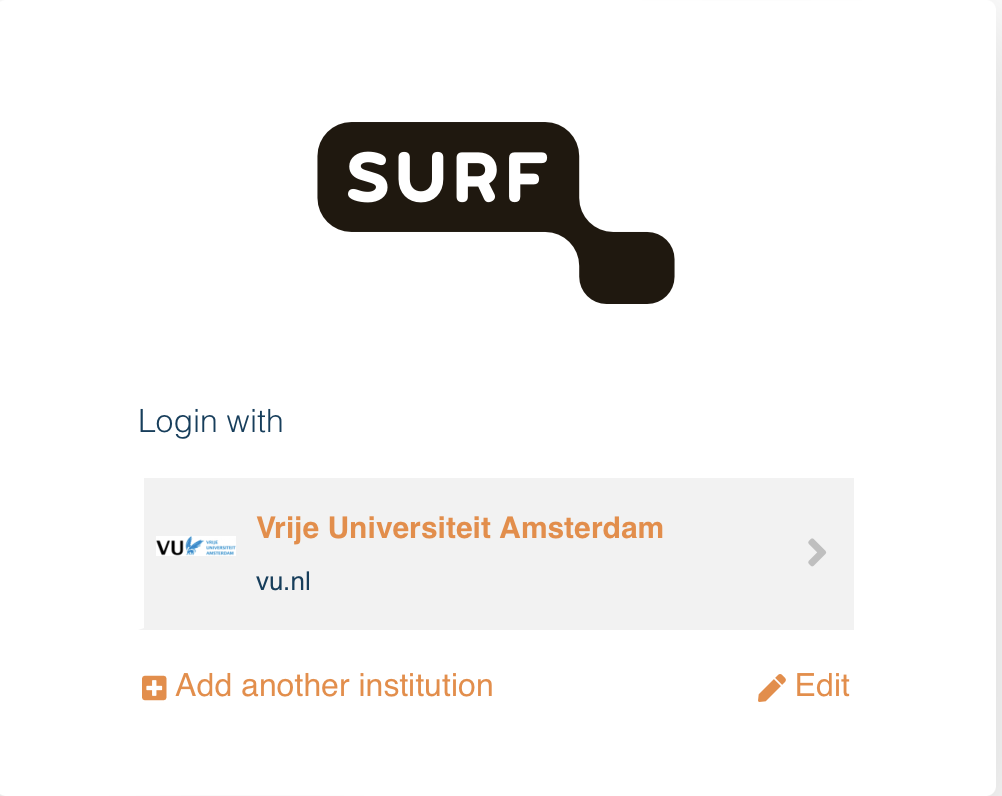
3.3 Login with your institutional credentials
Use your VU.nl credentials or eduID (NL).
3.4 Select Research
Select Research to access your active project space in Yoda.
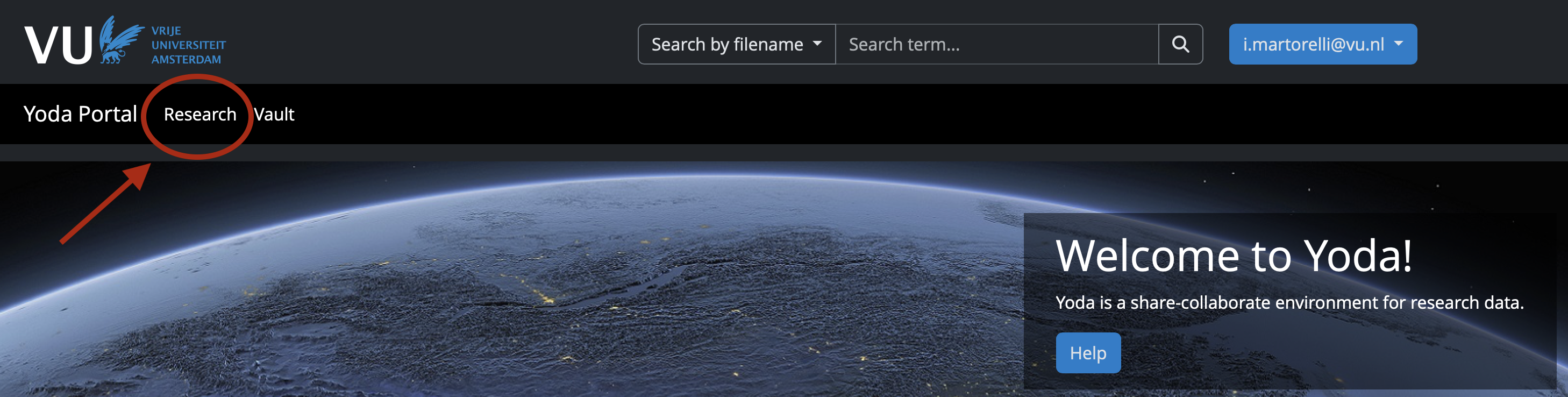
In this space you will be able to view your project folder. The project folder maps to the name you gave when requesting the Yoda storage space.
Active storage = Research Space in Yoda
The Research Space is the active storage area in Yoda where you work with your data during the project. It is the space you have just requested access to.
What next?
You are now able to start using your Yoda Research Space — go to Step 2: Organise your Data to prepare your files before putting them in the Yoda Research Space.
Further reading
 Read more about the Yoda Portal in the VU Research Support Handbook — Yoda Portal