 Getting Started with Research Drive
Overview
This is the Getting Started page, part of VU Tools → Research Drive in the A-LIFE RDM collection.
This document provides the first steps for using Research Drive:
Supporting materials: Resources, FAQs
Authors: Irene Martorelli, Brett Olivier — Last modification: 2026-02-19 — Version: 0.6.1
Already have access?
If you have already requested a Research Drive account for using Research Drive, you may jump directly to 2. Connect to Research Drive.
 1. Request Research Drive
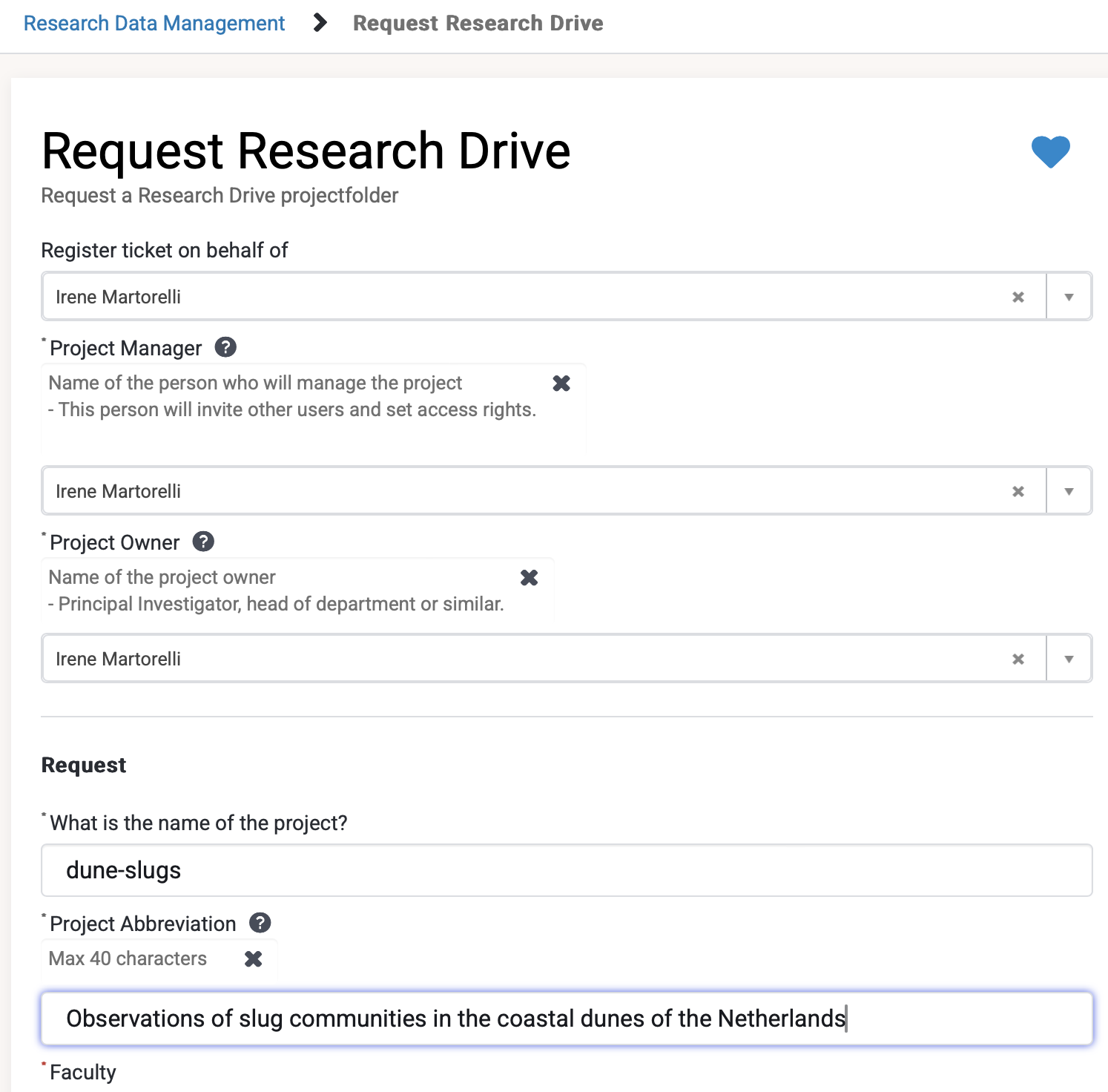
If your institution is providing you access to use the Research Drive storage space, the first thing to do is fill in and submit the Research Drive Request form accessible via the VU Service Portal VU Research Data Management.
 |
|---|
| VU Research Drive request form for cloud research project storage space source |
The primary contact person(s) for Research Drive support are the VU RDM support desk and the RD Functional Application Manager, Dimitri Unger (d.a.unger@vu.nl), who will send you updates on your application and confirmation, via email, of your Request Form submission [contact source].
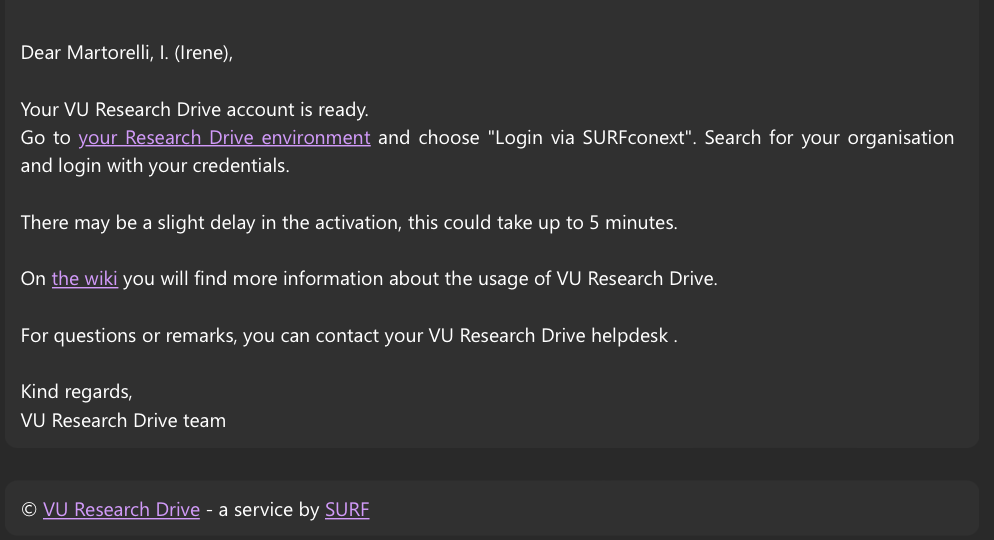
Once your request is approved, you will receive an email confirming that your Research Drive is activated and ready to use.
How is your project folder name called?
Your project folder will appear under "Shared with you" in the left menu of your Research Drive space. The folder name is an alias for your project name.
 Please note that the faculty prefix
 BETA_ is automatically added to your project name — for example, a project named my-project becomes BETA_my-project.
 |
|---|
| Notification of activated Research Drive account is sent to your affiliation email. |
 2. Connect to Research Drive
To connect to Research Drive, access via: https://vu.data.surfsara.nl
 3. Login to Research Drive
When your space is ready to use, you can login to your Research Drive via the login page and specify your affiliation.
-
Choose Login via SURFconext as VU is part of the SURF instance list.
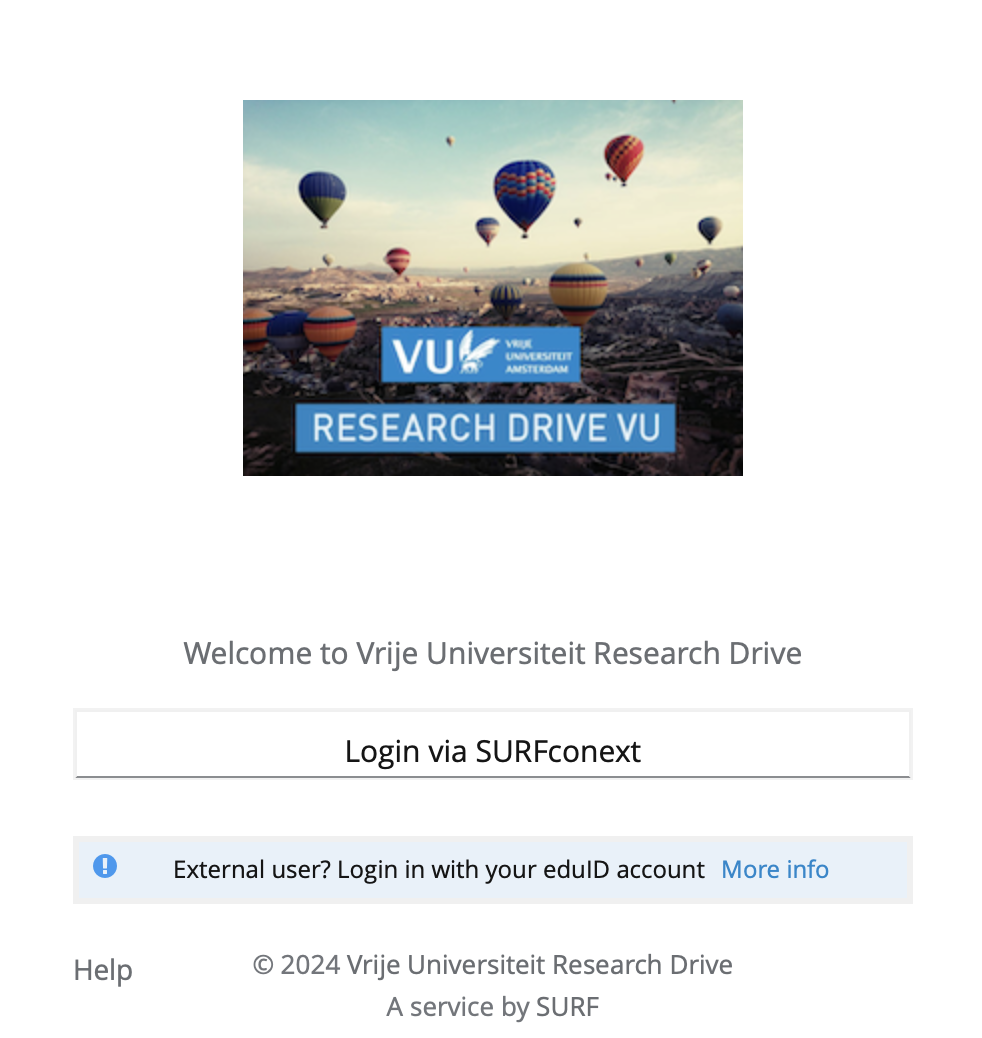
You can access the Research Drive space by selecting "Login via SURFconext" on the Research Drive Login page.
-
Choose your institutional login (VU) to access Research Drive [more]
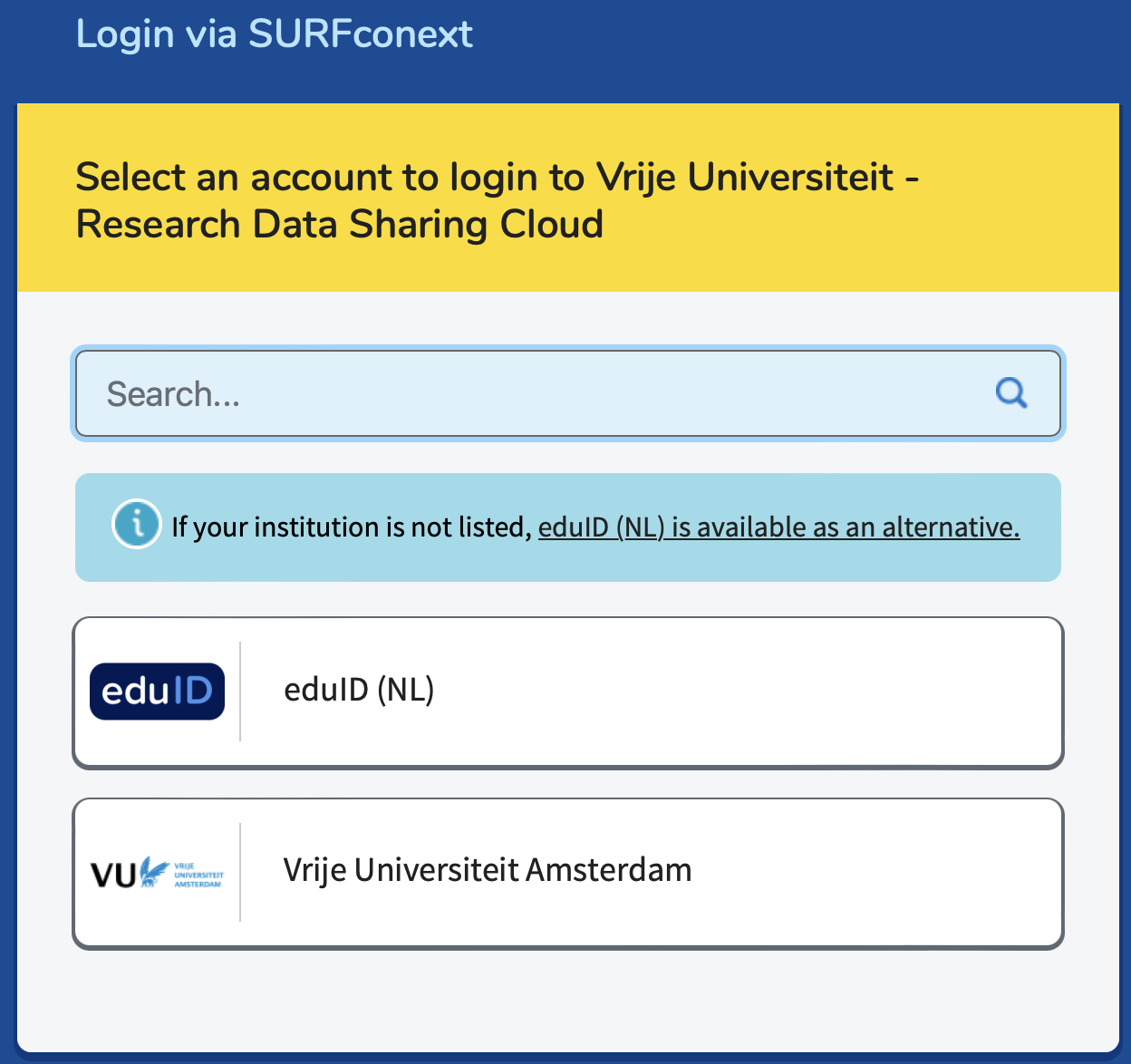
You are now able to use Research Drive!
What next?
Congratulations  You now have access to your Research Drive project space. Continue to Step 2 — Transferring Data to start uploading and managing your data.
-
SURF | RD: How to login to your Research Drive instance. https://servicedesk.surf.nl/wiki/spaces/WIKI/pages/117179039/RD+How+to+login+to+your+Research+Drive+instance ↩