 Best Practices for organising your data
A practical guide to naming and organising files for A-LIFE researchers
Overview
This guide is part of A-LIFE RDM GEMs → Guides.
This document provides support to naming and organising files. The information includes:
- Best Practices for Directory Structure
- Best Practices for File Naming
- Best Practices for File Versioning
Supporting materials: Yoda — Organising data, Research Drive — Organising data
Authors: Irene Martorelli, Brett Olivier — Last modification: 2026-07-28 — Version: 0.9.0
 Why organise data?
Well organised data is the foundation of good research data management — it makes your data easier to find, use, share, and preserve, both for yourself and others. This guide provides practical best practices for organising your research data files, specifically tailored for A-LIFE researchers.
The recommendations in this guide are particularly useful when working collaboratively, preparing data for transfer to Yoda, or getting ready to archive and publish. While this document focuses on digital data, the same principles can also apply to physical data objects such as microscope slides, sample jars, and other lab materials.
 1. Directory structure
During a research project, you will generate a large number of data files. How you organise these files should align with your research plan and reflects the workflow of your project. Grouping your files into organised folders will not only help keep your research work systematic, but also make it easier to locate files when needed. At the start of a project or study, you likely already have an idea of the types of data you will be working with, collecing and processing. This is a good time to begin structuring your folders to keep all your project files optimally well organised from the beginning.
While it may be tempting to simply dump all your files into one folder, a logical folder structure will make navigating your data easier and provide a clear overview of your files. This allows you to quickly find the right file or folder. In this section, we provide practical tips on how to create a folder organisation scheme that best suits your project.
 Best Practices for Directory Structure
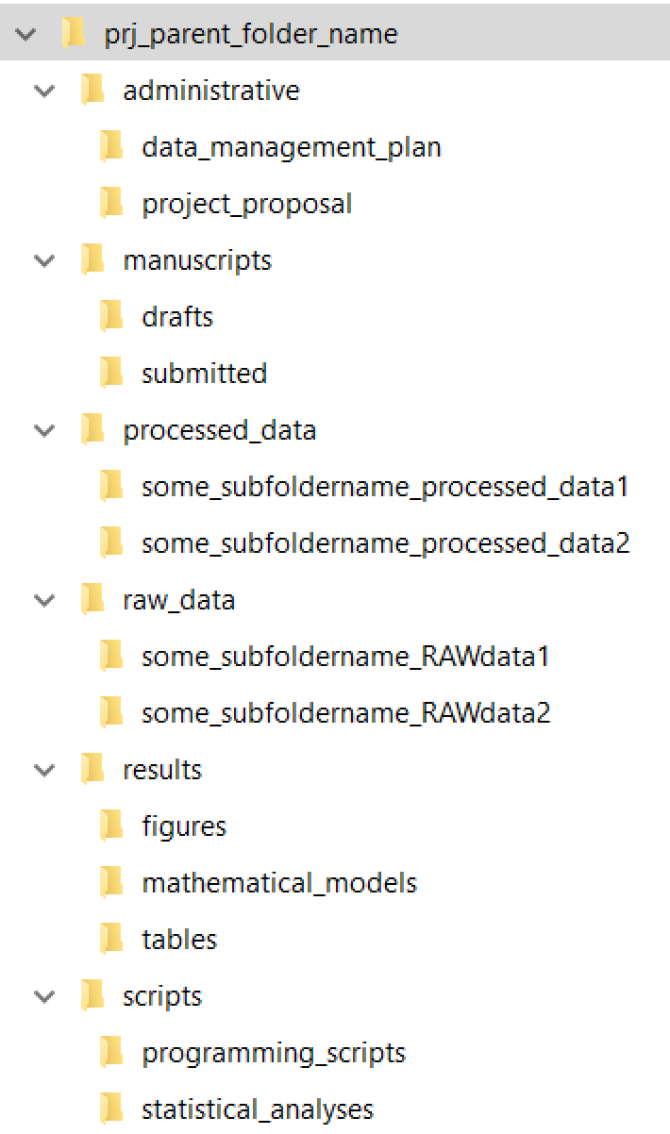
- Use simple and meaningful folder names
- Use a systematic naming convention for consistency.
- Use descriptive terms that help to reflect the folder's contents. For example the folder named "submitted" contains most likely final versions of manuscripts that have been submitted.
- Apply the file naming best practices to folder names (see next section on File naming).
Example of folder names that reflect what they contain1
- Group related files together
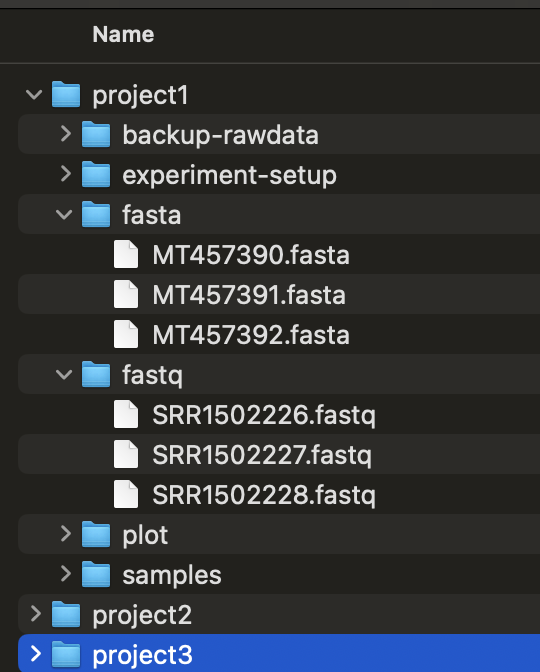
- Organise files by data type (e.g., images, databases, DNA sequences).
- Organise files by the kind of material they contain (e.g., publications, codes, literature or protocols).
- Structure files based on research workflow activities. These could be a arranged by a specific event in a process or step in an experiment (e.g.,
input_images,process_step_initialandoutput_graphs) - Files that contain sensitive or personal data should be stored in separate folders with appropriate access controls and documentation.
Example of where each folder stores files of the same type of data
-
Structure folders hierarchically
- Limit the number of high-level folders for broad topics, and more specific folders inside.
- Avoid too many hierarchical layers, limit to 3-4 layers.
- The main folder(s) should contain a name that reflects the project and relevant words that can be used to identify the dataset (e.g., Project, Person or Study name).
- If managing multiple independent datasets, create separate subfolders for each.2.
Example of a well-structured project directory
project_name/ code/ code needed to go from input files to final results data/ raw and primary data (never edit!) raw_external/ raw_internal/ metadata/ doc/ documentation of the study intermediate/ output files from intermediate analysis steps logs/ logs from the different analysis steps notebooks/ notebooks that document your day-to-day work results/ output from workflows and analyses figures/ reports/ tables/ scratch/ temporary files that can safely be deleted or lost README.txt file and folder description -
Folders should be distinct and non-redundant
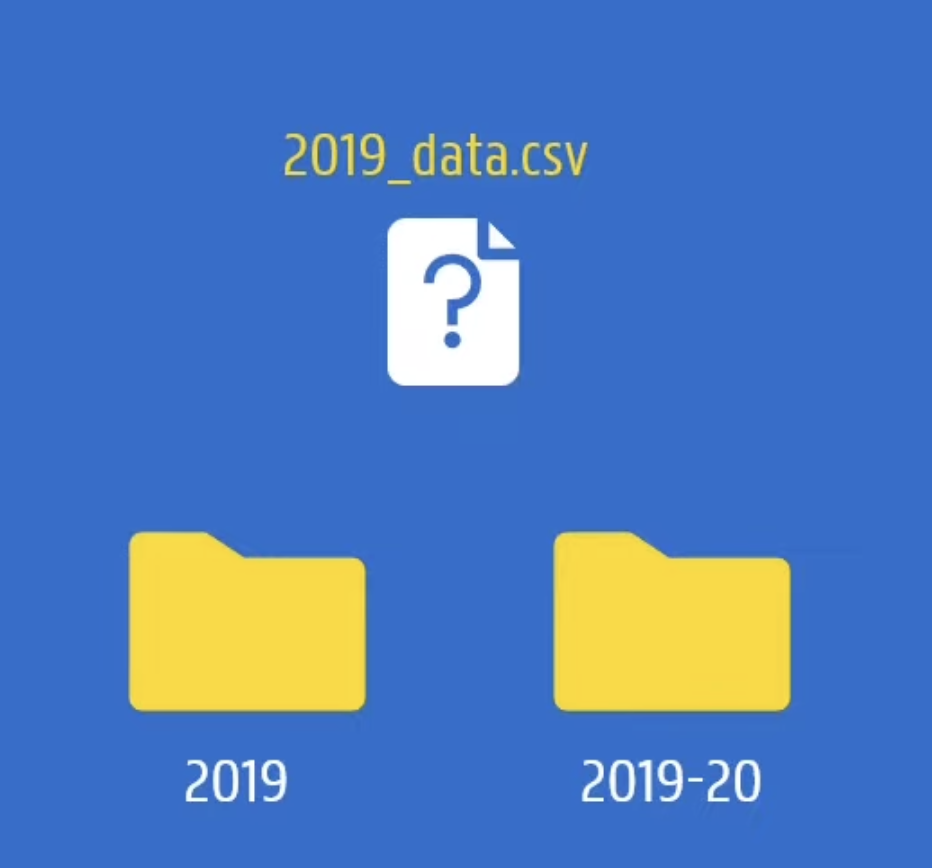
- group files into distinct categories without unnecessary overlap3.
- each file should have only one logical location.
- avoid duplicating folders with similar content, which can lead to confusion and version control issues.
Example of a poor folder organisation due to redundancy4
-
Document and share the file organisation scheme
- Design and decribe your file organisation scheme including the folder structure, the folder contents and naming conventions.
- Include the file organisation scheme in a README file (ideally in a text or markdown format) that is placed in the main folder of your project.
- The documented scheme makes it easier for you and collaborators to navigate in the project directory and navigate the project.
- README files and organisation scheme should be the first reference point when accessing the project directory.
README template needed?
 Download the README template5 to use for your folder, and see our Essentials — What to Include in a README section for guidance.
Is there a difference between a folder and a directory?
The short answer is yes. While directory and folder are often used interchangeably, they have distinct meanings:
- Folder — the graphical user interface (GUI) term used in file explorers
- Directory — the file system term, more common in command-line environments
Any folder can also be accessed as a directory. Read more about the folder metaphor.
 2. File Naming
A well structured file name is one of the most useful methods for keeping your data organised and you before anyone else will benefit from it. Think of file naming as the art of turning chaos into order. While naming files is often a personal choice, a logical and adaptable approach will help you quickly idenfity and remember a file's content.
This section outlines simple, effective rules to ensure a consistent and logical file naming scheme. Applying these best practices from the start, whether is for personal use only (e.g., your files on your laptop) or in share project environments (e.g., such a GitHub), can save you time and effort in the long run.
What are the main advantages of file naming?
- Enhance readability for yourself and others.
- Simplify your future tasks, suche as searching for a file or batch processing.
- Improving findability of files, thus reducing time spent searching for files and navigating through repositories.
- Identify contents quickly without opening every file to see what it contains.
- Facilitate collaboration by making files easy for others to understand.
What makes a good file name?
A good file name satisfies these three key requirements: 1. It is human readable. 2. It is machine readable. 3. It supports logical ordering and sorting.
In the next sub-section, we outline practical rules to help you create an effective file naming convention or naming scheme.
Best Practices for File Naming
-
Keep it simple and consistent
- Use clear, meaningful words in filenames that describe the content or purpose.
- Use words or terms that are easy for you, and others, to understand.
- Maintain a consistent naming pattern across similar files.
Example of a consistent file list for experiments
experiment01_temperature_readings_20250212.csv experiment02_temperature_readings_20250212.csv experiment01_temp_normalised_20250212.xlsx experiment02_temp_normalised_20250212.xlsx -
Keep filenames short but descriptive
- Use abbreviations (two or three letters) when needed. For example, use
exp1forexperiment1. - Keep filenames under 32 characters for readability. For example, avoid this sort '
whyIsthisFilenameSolongIdidnotThink-This-Through.txt' - Main key details to include in filenames:
- Date of creation (YYYYMMDD)
- Project (name/number/experiment/acronym)
- Type of data (Sample ID, Analysis, Conditions, Modifications, etc.)
- Location
- Creator (name/initials)
- Version number
- Reserve the last 3-letters for file format (such as .xls, .mov, .tif, .doc)
Examples of including key elements for generating structured filenames
-
If your file contains information about: Honeybee project, experiment 2, done in Helsinki, data file created on 2 December 2020,
- then a good filename is: '
20201202_HB_EXP2_HEL_FLIGHT_V03.xls'  following the rule: Date_ProjectAbbreviation_ExperimentNumber_Location_TypeOfData_VersionNumber
-
Or you are dealing with: A cropped image of an ant head taken on the third of December 2020 by Meg Megson
- A good filename is: '
20201203_MM_HEAD_CROPPED_V1.psd' - The rule Key: Time_CreatorData_TypeModification_Version
- Use abbreviations (two or three letters) when needed. For example, use
-
Use a naming convention that groups similar files.
- Your naming convention can vary by file type. For example, one name convention could apply to your image files, another to raw data and another to processed data.
- Note your conventions and store them within the folder for clarity.
-
Use alpha-numerical characters
- Stick to letters, numbers, hyphens (
-) or underscores (_). - Avoid excessive brackets such as (
{ [ ( < > ) ] }). - Avoid the use of special characters (
~ ! @ # $ & % ^ * |) as these may caouse errors in file paths. - Avoid the use of periods, commas and quotations (
. , " ') as these may confuse file extensions. - Avoid accented characters (
ù, à, ë, ç, ..) as these can be interepreted differently on different operating systems and terminals. - Keep naming consistent and document exceptions when necessary.
Examples of using hyphens for filenames and repository names
-
Filenames (for reports, documents, or human-readable files):
species-diversity-analysis-20250127.csv ocean-temperature-trends-report.pdf -
Repository names
ocean-biodiversity-mapping
genome-sequence-analysis-tool
wildbirds-tracking-pipeline
Examples of using underscores for scripts, datasets and function names.
-
Datasets
plant_growth_experiment_results.csv marine_ecosystem_data_2023.csv marine_ecosystem_analysis_2024.csv water_sample_collection.xls -
Scripts and functions
water_sample_process.py
biome_data_analysis.R
analyse_species_distribution()
calculate_growth_rate()
Examples of filenames with problematic special characters.
These may result from accidental typing, free-form naming, or even when your cat sat on the keyboard

    checklist*/comeupwithabetterone!@VU.txt
    *important!!ˆ.docx
    DONOTshare!!@?.doc
    doc4=/'code".md
    Co0Kb0OKvoilà.html
    aaaaaaaaassddd....txt
Should I use hyphens or underscores?
 Hyphens are mostly used for human-readable files and repository names, while underscores are more common for scripts and datasets, avoiding command-line issues. You will notice that Life Science and bioinformatics fields have a tendency of using underscores (
_) in their filenames. - Stick to letters, numbers, hyphens (
-
Avoid spaces
- Avoid spaces in filenames as they can break tab completion and make working with files on a command line more difficult.
- Instead use capital letters and/or underscores (
_) to separate words, terms or abbreviations used to construct a filename (For example:RenalCapsuleScan001,RenalCortexScan001,renal_cap_scan_001,renal_cor_scan_001.) - A common practice to use hyphens (
-) to delimit words within a term and underscores to separate distinct terms. (For example:renal-capsule_scan_001.tiff). - Do not start or end filenames with spaces, periods, or hyphens as these can be accidentally introduced in graphical interfaces and may cause issues.
Examples filenames with spaces
These may seem human-friendly but are actually inconsistent, machine-unfriendly and also difficul to read.
Our project doc finalfinal.doc OurProjectDocument final laststage.doc projectfinalfinalfinalversion I promise.doc Untitled 123 copy.doc Untitled 123 copy 2.doc Untitled 123 copy 2-1.doc -
Use a logical ordering system for filenames
- Think of one or more of the following that works best for you.
- Alphabetical ordering: start filenames with main key search word for easier sorting based on term.
Examples of alphabetical ordered filenames
The files are ordered by the key term fieldwork:
fieldwork_farm-adrianne fieldwork_farm-arianna fieldwork_farm-barbara fieldwork_farm-charlotte fieldwork_farm-clara- Numerical ordering: use leading zeros to maintain proper sorting. For example, for more than nine files, use left-zero padding to create a sorted sequence, for example, use
00, 05, 09, 10, 11, ..instead of the less intuitive0, 10, 11, 5, 9, ...
Examples of using numerical ordering
Numbered filenames with left-zero padding (as 009 instead of 9).
figure008_scatterplot_COR10.png figure009_scatterplot_COR10.png figure010_scatterplot_COR10.png figure011_scatterplot_COR10.png- Chronological ordering: use the ISO 8601 standard dates format
YYYYMMDDorYYYY-MM-DDand times,HH:MM:SS. For example:September 27, 2022 at 6 p.m.can be represented as2022-09-27_18:00:00.000. Of course dates and times can also be used anywhere in the filename.
Examples of using chronological ordering
consistent date-based filenames following a chronological order.
    2025-01-04_processed-data.csv
    2025-01-05_processed-data.csv
    2025-04-11_plasmidA01-mutant_H01.csv
    2025-04-11_plasmidA01-mutant_H02.csv
    2025-04-11_plasmidA01-mutant_H03.csv

    20260204_meeting-notes.doc
    20260206_meeting-notes.doc
    20260209_meeting-notes.doc
Examples of inconsistent numbering
If one is not consistent with the numbering rule, then this leads to incorrect sorting
    copyfig 111.png
    fig 111.png
    figure 21.png
    fig22.png
    fig22copy2.png
    image11.png
    image1.png
    image9.png
Which ordering system should I use?
Alphabetical and chronological ordering help track file versions, while numerical ordering ensures files are sorted logically. -
Filenames and file versions
- Use versioning to indicate the current version and avoid confusion.
- Add version numbers at the end of the filename, (for example: version 2 of the your file could be
filename_v2.doc. - Use a consistent format such as using the leading v for
v01orv02, or ISO 8601 date and timestamps, such asYYYY-MM-DD_HH-MM-SSfor precise tracking.
Examples of versioning in filenames
version label used in filenames, such as a format or date.
experiment_illumina_v01.csv experiment_illumina_v02.csv experiment_illumina_20260223.csv experiment_illumina_20260224.csv -
Document your naming conventions and patterns
- Maintain a README file in your directory to define abbreviations and naming patterns.
- Include explanations for abbreviations, formatting rules and your versioning methods.
Examples of including a naming convention in documentation
version label used in filenames, such as a format or date.
## Abbreviations used in dataset A (.csv format), where header corresponds to column name

### column 1: title_name
P1 : Project_1
P2 : Project_2

### column 2: scientific_name
MUS : Mus musculus
DRO : Drosophila
 Tips for maintaining good filenames
-
How is your file named?
- Check how exported are automatically named by your tool. For example, Word applications may insert extra spaces or add the word
copy). - Avoid accidental trailing spaces, check the names as they can be hard to spot on high-resolution monitors!
- Check how exported are automatically named by your tool. For example, Word applications may insert extra spaces or add the word
-
Where did my file go?
- Double check where a file is saved, some programs default to unexpected locations and you may lose track of the name.
- Avoid typos and special characters that my cause errors in different operating systems. Some software, M$ Office comes to mind, tends to default where it thinks you should save a file. Don't let M$ dictate your workflow and navigate to where you want to save your file.
 3. File Version
File versioning helps manage multiple versions of files or drafts of your files. It is important for tracking changes, collaborations, and restoring previous versions if needed.
What are the main advantages of versioning?
- Increases transparency — you are able to track the changes and check what modifications were made, when and by whom.
- Allows you to go back in case of errors or unwanted modifications.
- Improves collaboration by ensuring that all researchers point to the same (latest) version.
Best Practices for File Versioning
-
Use clear version numbers in filenames
- Follow a structured versioning system. For example v1.0, v2.0, v1.1, and using the first number for major changes and the second for minor changes; v1_LP if you are working in a group and need to keep track of who made the changes.
- use major.minor notation for small modifications, such as to distinguish between the copies '
rdm_documentation_v1.0' with 'rdm_documentation_v1.1' 6. - avoid unclear labelling such as
finalfinal.docor finalversion11.doc`. - optionally, add dates to show when a version was created or when a change has been made.
-
Track who made changes
- Add initials to filenames for shared files. For example
rdm-documentation-v1.1_IMfor Irene Martorelli editing the file. - Keep a document version log that documents what changed, when and by whom to keep track of the changes made beween version.
Examples of a version log to keep track
version table for tracing modification references used for a collaboration.
    | Version | Date     | Author         | Changes                |
    |---------|----------|----------------|------------------------|
    | v0.1    | 20260202 | B. Olivier     | Initial draft          |
    | v0.2    | 20260212 | I. Martorelli  | Added examples         |
    | v0.3    | 20260213 | I. Martorelli  | Included a new section |
Tip
Check out this guide on versioning: Introduction to semantic versioning - Add initials to filenames for shared files. For example
References for Best Practices for organising your data
-
Organising files and folders, Wageningen University & Research. url ↩
-
Research Data Management (RDM): Folder Structure, Charles Darwin University. url ↩
-
Research data management: a practical guide - organising, University of York. url ↩
-
Knowledge clip: Keeping research data organized [Video], by UGent Open Science, 2021, Ghent University. url ↩
-
Guide to writing "readme" style metadata, Cornell data services, Cornell University. url ↩